

WinSCP describes itself as a “Free SFTP, SCP, S3 and FTP client for Windows”, and it speaks WebDAV as well. It is open source under the GPLv3 and has been developed by Martin Přikryl for many years. Getting it is simple once you know one quirk of the official download page, which we cover first.
WinSCP in brief
- Official site
- winscp.net
- Download page
- winscp.net/eng/download.php
- Version checked
- 6.5.7, a download of about 12 MB
- Platform
- Windows only
- Documentation
- winscp.net/eng/docs
Version 6.5 brought a thumbnail view in the file panels, a choice of three toolbar icon sizes, the Segoe UI font, an improved Synchronization checklist, a dark theme for session tabs, better S3 support and compatibility with the new OneDrive WebDAV interface.
Download WinSCP from the official siteOpens the official WinSCP download page. We host no files.
The download page: button, not banners
WinSCP is free, and its download page carries advertisements to help pay for it. Some of those ads can look like download buttons. The real one is the large green/blue Download WinSCP button that includes the version number (6.5.7 at the time of writing).
- Click only the button labelled with the WinSCP version.
- Ignore banners elsewhere on the page, even if they say “Download”.
- The file you receive should have WinSCP and the version in its name, such as
WinSCP-6.5.7-Setup.exe. - If a different program starts downloading, cancel and delete it, then try again.
The same care applies to search results: go to winscp.net directly rather than through a “download portal”. Unofficial download sites may bundle extra software, and there is no benefit to using them.
Installer or portable package
The big button gives you the installer. The Other Downloads section of the same page lists the portable package and a few other variants.
| Installer | Portable package | |
|---|---|---|
| Best for | Your own PC, day-to-day use | A USB stick, a shared admin toolkit, PCs without admin rights |
| Needs installing | Yes (can be for current user only) | No — unzip and run |
| Start menu and shell integration | Yes | No |
| Where settings live | Your Windows user profile | A settings file next to the program |
| Updating | Run the newer installer | Replace the program files yourself |
What we like
- Installer integrates with Windows and is easy to update
- Portable version leaves nothing behind on the PC
Keep in mind
- Portable copies are easy to forget to update
- Stored site passwords travel with a portable copy, so protect the USB stick
Running the installer
Start the setup file
Double-click
WinSCP-6.5.7-Setup.exein your Downloads folder. First run the quick check in Verify the file.Pick who it is for
Setup asks whether to install for all users (this triggers a UAC prompt, because it needs admin rights) or just for you.
Accept the licence
WinSCP is GPLv3; read and accept to continue.
Choose the setup type
Typical is right for most people. Custom lets you change the folder and components.
Choose the interface style
Commander or Explorer — see the next section. You can switch later.
Finish
Install, then launch WinSCP from the last page or the Start menu. The Login dialog opens first.
The exact wording of each page may differ slightly between versions.
Commander or Explorer?
This is the one setup choice that changes how WinSCP feels.
| Style | Layout | Who it suits |
|---|---|---|
| Commander | Two panels: your PC on the left, the server on the right | Anyone who copies files between the two often; keyboard users |
| Explorer | One panel showing the server, similar to File Explorer | People who mostly browse the server and drag files in from Windows |
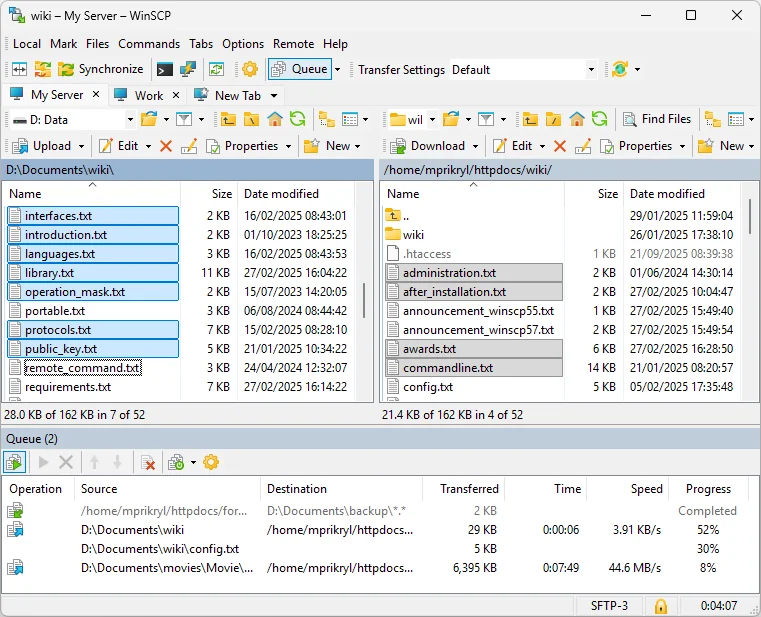
We recommend Commander; our WinSCP guide is written for it. If you pick Explorer and change your mind, the interface style can be changed later in Preferences.
Setting up the portable package
Download from Other Downloads
Choose the portable package, a zip file such as
WinSCP-6.5.7-Portable.zip.Unzip to your tools folder
Extract it to
C:\Tools\WinSCPor a folder on your USB stick.Run it
Start
WinSCP.exe. It keeps its sites and preferences in a settings file in the same folder instead of in your Windows profile.
Verify the file
WinSCP’s installer and executables are digitally signed with Authenticode. Right-click the downloaded file, choose Properties, open Digital Signatures, select the entry and click Details. The signature should be reported as OK, with the developer, Martin Přikryl, named as the signer (the certificate may write the name without the accent).
cd $env:USERPROFILE\Downloads
Get-AuthenticodeSignature .\WinSCP-6.5.7-Setup.exe | Format-List Status, SignerCertificate
Get-FileHash .\WinSCP-6.5.7-Setup.exe -Algorithm SHA256
For the portable zip, check the signature on WinSCP.exe after unzipping it. The hash from Get-FileHash is useful if you keep a record of what you install, or want to confirm that two copies are identical.
A valid signature plus the winscp.net address in your browser history is all the assurance you need.
Keeping WinSCP current
New releases appear on the download page. For the installed version, download the newer setup file and run it over the existing installation; your saved sites and preferences stay. For the portable version, unzip the new files over the old ones and keep the settings file. To remove WinSCP, use Settings > Apps > Installed apps; a portable copy is removed by deleting its folder.
If you also need a terminal on the same servers, install PuTTY alongside it; see download and install PuTTY.
Troubleshooting
The file you downloaded is not called WinSCP-something.
Likely cause: You clicked an advertisement instead of the real download button.
Fix: Delete the file, go back to winscp.net/eng/download.php and use the button with the version number.
Setup asks for an administrator password.
Likely cause: You chose to install for all users.
Fix: Go back and install for the current user only, or use the portable package.
The Digital Signatures tab is missing.
Likely cause: The file is incomplete or did not come from winscp.net.
Fix: Delete it and download again from the official page.
Portable WinSCP forgets your sites.
Likely cause: The folder is read-only, so the settings file cannot be saved.
Fix: Move the WinSCP folder to a writable location such as C:\Tools\WinSCP.
You see one panel instead of two.
Likely cause: The Explorer interface style was chosen during setup.
Fix: Switch the interface style to Commander in Preferences.
Download WinSCP 6.5.7 from winscp.netOpens the official WinSCP download page. We host no files.