

Updated September 2026 · 6 tools · 12 guides
Six network tools worth installing on Windows
We picked the free and low-cost utilities that office IT people actually use — to find devices, check shared folders, read traffic and work on servers — and wrote two guides for each: where to download it safely and how to install it, and how to use it day to day.


Our six picks, reviewed
Each review below is short on purpose: what the tool is for, what it does well, where it falls short and which download to pick. The two guides linked from every review go into the detail — installation step by step, how to check that the file really comes from its developer, and the everyday tasks you will use the program for. Everything was checked against the developers’ own websites in September 2026.
01 / 06
Advanced IP Scanner
by Famatech Corp.
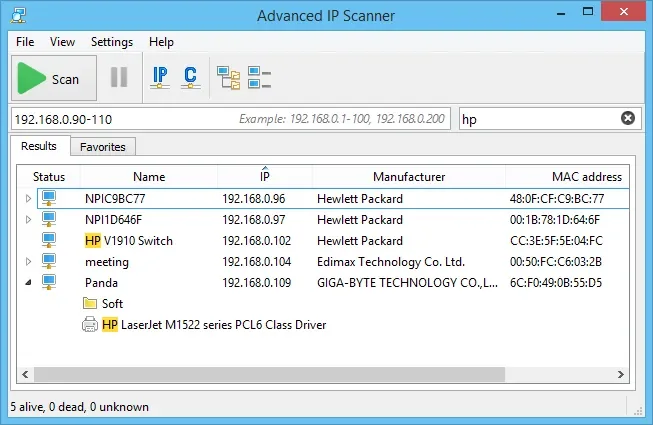
If you only install one scanner, this is the one most Windows admins reach for, and it is easy to see why. You type a range — or press the button that fills in your own subnet — click Scan, and a few seconds later you have a list of every device that answered, with its name, IP address, network-card manufacturer and MAC address.
The strength is what happens next. Expand a Windows PC and its shared folders and printers appear underneath; right-click and you can open a share, start a Remote Desktop session, or use Radmin, the developer’s own remote-control tool. Famatech lists Windows 11, 10, 8 and 7 as supported, and the installer can simply run the program without installing it, which is handy on a colleague’s PC.
What we like
- Very quick to learn: one range field and one button
- Shared folders, RDP and Radmin straight from the results
- MAC address and manufacturer columns out of the box
- Can run without installing; exports results to CSV
Keep in mind
- Windows only
- Remote shutdown and Wake-on-LAN need the target PCs to be set up for them
- Fewer options for ports and custom columns than Angry IP Scanner
- Version checked
- 2.5 series
- Licence
- Freeware
- Runs on
- Windows 11, 10, 8, 7
- Portable
- Yes (run without installing)
02 / 06
Angry IP Scanner
by Anton Keks and contributors
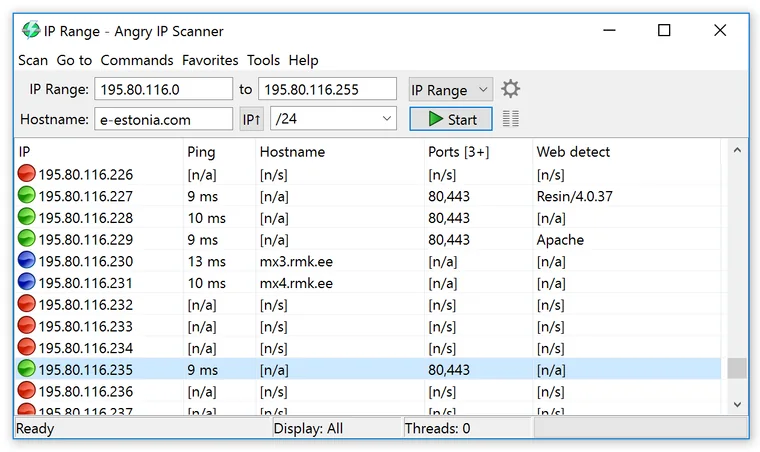
Angry IP Scanner is the open-source favourite, and it runs the same way on Windows, macOS and Linux. It thinks in two simple ideas: a feeder decides which addresses to check (a range, a random set or a list in a text file) and fetchers decide which columns of data to collect for each one — ping time, host name, open ports from a list you choose, a web-server banner, a MAC address.
That design makes it the most flexible of the free scanners. It is also the best choice when the results need to go somewhere else: exports to CSV, TXT, XML or a plain IP:port list are built in. Version 3.10.0 is current; on Windows, take the installer that includes its own Java runtime and there is nothing else to set up.
What we like
- Open source (GPLv2) and cross-platform
- Choose exactly which columns to collect, including ports
- Four export formats for spreadsheets and scripts
- Windows installer bundles Java, so setup is one file
Keep in mind
- The interface is plainer and a little more technical
- No built-in shared-folder browsing or RDP launcher
- The stand-alone exe needs a separate 64-bit Java 21 or newer
- Version checked
- 3.10.0
- Licence
- Open source (GPLv2)
- Runs on
- Windows, macOS, Linux
- Portable
- Yes (stand-alone exe needs Java 21+)
03 / 06
LizardSystems Network Scanner
by LizardSystems
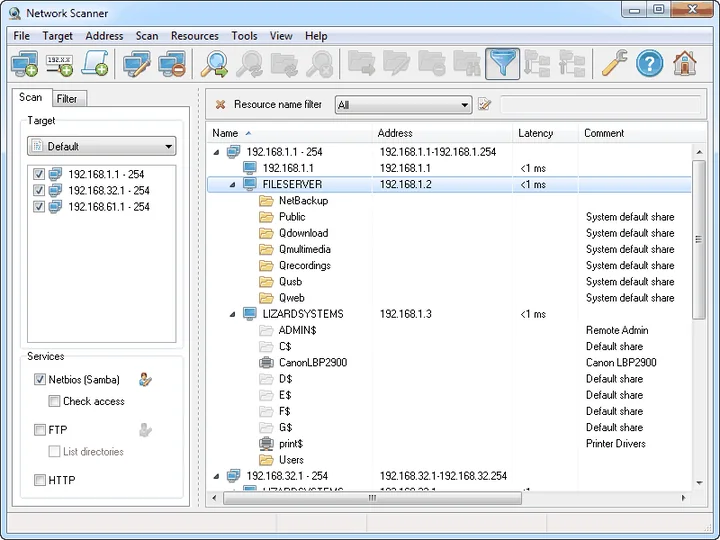
LizardSystems’ Network Scanner answers a narrower question than the other two scanners, and answers it better: what is shared on this network, and who can open it? It walks through ranges, address expressions or a list of computer names and lists every shared folder, printer share, FTP and web service it finds in one tree.
Its standout feature is the access check. It can test whether the current account — or another account you specify — can read or write each share, and the Filter tab then narrows the tree to, say, only writable folders. That turns a tidy-up of old file shares from guesswork into a checklist. Results export to HTML, XML or TXT. The current version, 21.07, is free for personal use; businesses need a licence per PC.
What we like
- Lists every shared folder, printer, FTP and web service
- Checks read and write access per share, for any account
- Filter tab turns a big tree into a short to-do list
- Small, signed 3 MB installer; SHA-256 published by the vendor
Keep in mind
- Business use requires a paid licence per machine
- Latest release is from 2021; Windows 11 is not on the vendor’s list
- No MAC column and no CSV export
- Version checked
- 21.07
- Licence
- Free for personal use; business licence
- Runs on
- Windows 7 to 10, Server 2008 R2 to 2016
- Portable
- No
04 / 06
Wireshark
by The Wireshark Foundation
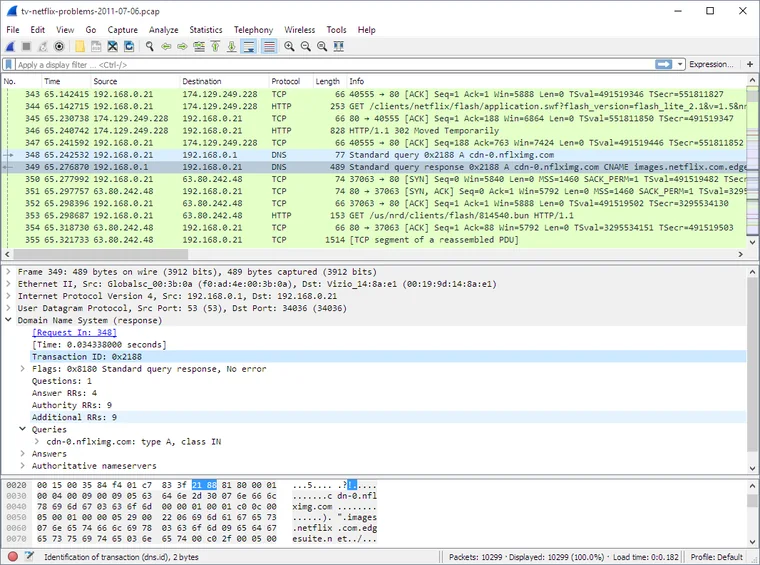
When a scanner tells you what is on the network, Wireshark tells you what it is doing. It records the traffic on your own network adapter and decodes it protocol by protocol, so you can see a DNS lookup fail, a DHCP request go unanswered or an application retry the same connection again and again.
It has a learning curve, but you need only a handful of things to be productive: pick an interface, type a display filter such as dns or ip.addr == 192.168.20.10, and use Follow TCP Stream and the Statistics menu. The Windows installer adds Npcap, the driver that makes live capture possible. Stable release 4.6.8 is current.
What we like
- The reference tool for understanding network problems
- Display filters make huge captures easy to narrow down
- Conversations, Endpoints and Protocol Hierarchy summaries
- Free, open source, with x64, Arm64 and portable builds
Keep in mind
- A steeper learning curve than any other tool here
- Live capture needs the Npcap driver and admin rights to install
- Captures can contain private data and must be stored carefully
- Version checked
- 4.6.8
- Licence
- Open source (GPLv2)
- Runs on
- Windows x64 and Arm64, macOS, Linux
- Portable
- Yes (PortableApps build)
05 / 06
PuTTY
by Simon Tatham and the PuTTY team
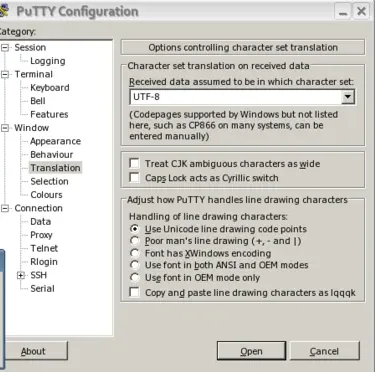
PuTTY is small, fast and has been the default SSH client on Windows admin PCs for a very long time. You type a host name, press Open and you have a terminal on your Linux server, NAS or network switch. Saved sessions keep each server’s settings one double-click away.
The package is more than one program: PuTTYgen creates SSH keys, Pageant keeps them unlocked while you work, and pscp, psftp and plink cover file copies and scripted commands. PuTTY also speaks serial, which is exactly what you need for the console port of a switch or router. Release 0.85 is current, and it is published as a 64-bit MSI installer on the developer’s own site.
What we like
- Tiny, quick and dependable
- Saved sessions for every server you manage
- Key tools included: PuTTYgen and Pageant
- Serial console support for switches and routers
Keep in mind
- No tabs: each session is its own window
- Settings are spread across a deep category tree
- Look-alike download sites exist; use the developer’s page
- Version checked
- 0.85
- Licence
- Open source (MIT)
- Runs on
- Windows x64, Arm64 and 32-bit
- Portable
- Yes (single putty.exe)
06 / 06
WinSCP
by Martin Přikryl
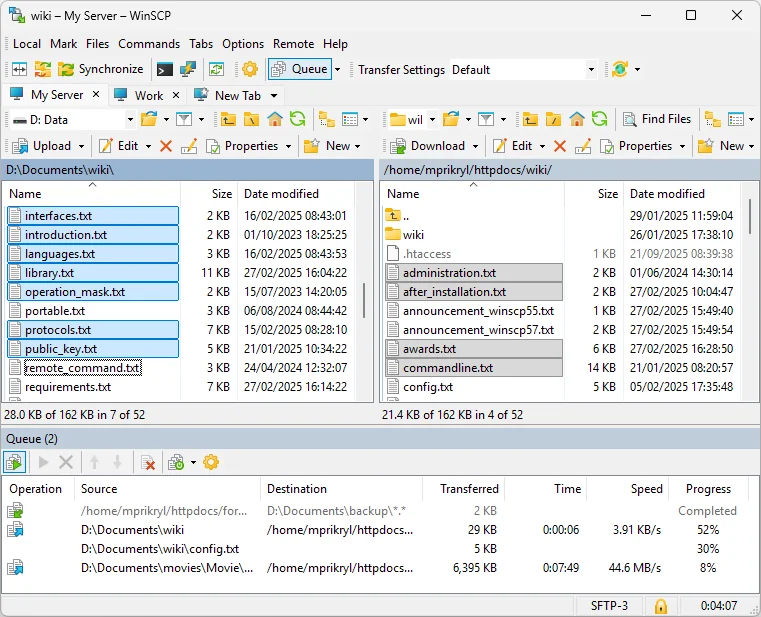
WinSCP is the natural partner to PuTTY: a graphical file manager for moving files to and from servers over SFTP, SCP, FTP, WebDAV and Amazon S3. In the Commander layout your PC is on the left, the server on the right, and you drag files between them while the queue shows progress.
It goes well beyond copy and paste. You can edit a remote file in the built-in editor, change permissions, compare and synchronize two folders with a preview checklist, or keep a remote folder up to date automatically while you work. For repeat jobs there is scripting and a .NET library. Version 6.5.7 is current and there is also a portable package.
What we like
- SFTP, SCP, FTP, WebDAV and S3 in one program
- Synchronize folders with a preview before anything changes
- Integrated editor and background transfer queue
- Scripting for repeat jobs; portable package available
Keep in mind
- Windows only
- The official download page carries ads; click the version-labelled button
- Lots of options, which can feel busy at first
- Version checked
- 6.5.7
- Licence
- Open source (GPLv3)
- Runs on
- Windows
- Portable
- Yes (portable package)
Side-by-side comparison
The three scanners overlap, but each has its own centre of gravity. Wireshark, PuTTY and WinSCP do different jobs and sit happily alongside any of them.
| Program | Best for | Licence | Version checked | Portable | Guides |
|---|---|---|---|---|---|
| Advanced IP Scanner | Fast LAN inventory on Windows | Freeware | 2.5 series | Yes (run without installing) | Install · Use |
| Angry IP Scanner | Open-source scanning with exports | Open source (GPLv2) | 3.10.0 | Yes (stand-alone exe needs Java 21+) | Install · Use |
| LizardSystems Network Scanner | Auditing shared folders | Free for personal use; business licence | 21.07 | No | Install · Use |
| Wireshark | Troubleshooting network traffic | Open source (GPLv2) | 4.6.8 | Yes (PortableApps build) | Install · Use |
| PuTTY | SSH and serial console sessions | Open source (MIT) | 0.85 | Yes (single putty.exe) | Install · Use |
| WinSCP | Moving files to servers securely | Open source (GPLv3) | 6.5.7 | Yes (portable package) | Install · Use |
“Portable” means the program can run without a full installation — useful on a machine where you do not want to leave software behind. Details and caveats are in each download guide.
Which one do you need?
“What is on my network?”
Start with Advanced IP Scanner for a quick list with names and MAC addresses, or Angry IP Scanner if you want ports and exports.
“Which folders are shared, and who can write to them?”
LizardSystems Network Scanner lists shares and checks read and write access.
“Why is this connection slow or failing?”
Wireshark shows what each device actually sends and receives.
“I need a terminal on a server or switch.”
PuTTY for SSH sessions and serial consoles.
“I need to move files to a server.”
WinSCP for SFTP, SCP, FTP, WebDAV and S3 transfers and folder sync.
“I want a toolkit for a new admin PC.”
Install one scanner, Wireshark, PuTTY and WinSCP — about fifteen minutes with our download guides.
Download them the safe way
All six programs are free to download from their developers, and that is the only place we link to. Search results and “download portal” sites sometimes wrap installers in their own setup programs or offer out-of-date versions, so our download guides always start from the official page and then show you how to confirm what you received:
- Check the digital signature. Right-click the file, open Properties → Digital Signatures and confirm the signer is the developer named in the guide.
- Compare the hash where one is published.
Get-FileHashin PowerShell gives the SHA-256 of the file in a second. - Read the UAC prompt. The “Verified publisher” line should match the developer.
- Keep it updated. Each guide explains how the program tells you about new versions.
The full checklist, with the commands, is on our safe downloads page.
How we chose and tested
We started from the tools that come up again and again in office IT work and kept the ones that are free or have a free edition, are still available from their developer and do one job well. For each one we read the official download page, release notes and documentation, and wrote down exactly which files are offered, what the installer asks and what the licence allows; version numbers were checked on the developer’s site in September 2026. No developer paid for a place on this page, and we do not use affiliate links. More about how we review.
Quick answers
Are all six programs really free?
Advanced IP Scanner, Angry IP Scanner, Wireshark, PuTTY and WinSCP are free for everyone. LizardSystems Network Scanner is free for personal, non-commercial use; business use needs a licence per PC, listed at US$79.95 on the vendor’s site in September 2026.
Which scanner should I start with?
For most people, Advanced IP Scanner: it is the quickest to learn. Choose Angry IP Scanner for ports, exports or macOS and Linux, and LizardSystems Network Scanner when the job is about shared folders and permissions.
Do I need administrator rights?
Usually to install, yes, because installers write to Program Files. Several of the tools also run without installing — the download guides say which, and how.
Do you host the installers?
No. Every download button on this site opens the developer’s own download page, so you always get the current, genuine file.