

Advanced IP Scanner is a free Windows utility from Famatech Corp., the company that also makes Radmin and Radmin VPN. Point it at an address range and it lists the devices it finds, with their names, manufacturers and MAC addresses, and it puts shared folders and remote desktop connections one right-click away. This page walks through getting the genuine file, choosing between installing and simply running it, checking the digital signature, and sorting out the handful of things that can go wrong.
Download Advanced IP Scanner from the official siteOpens the official Advanced IP Scanner download page. We host no files.
Advanced IP Scanner in brief
- Developer
- Famatech Corp. (also the maker of Radmin and Radmin VPN)
- Licence
- Freeware
- Windows versions
- Windows 11, 10, 8 and 7, as listed on the official site
- Current generation
- 2.5 — the file is named along the lines of
Advanced_IP_Scanner_2.5.xxxx.exe - Installation
- Optional — the same file can install the program or run it as a portable edition
- Digital signature
- Famatech Corp.
The official site describes the tool as “trusted by 70 million users”. That is the vendor’s own figure and we have no way to check it, but it does explain why the program turns up on so many office IT checklists. The features the site highlights are the ones you will use most: easy access to network shares, remote control through RDP and Radmin, MAC address detection, switching computers on and off remotely, and exporting results to CSV.
Use it on networks and devices you own or administer.
Where the genuine file lives
There is exactly one place to get it: advanced-ip-scanner.com, run by Famatech. Everything else is a copy of a copy, and unofficial download sites may bundle extra software with the installer. Going straight to the developer also means you always get the current 2.5 build rather than whatever a third party uploaded last year.
Open the official home page.
Type
advanced-ip-scanner.cominto the address bar yourself rather than clicking a search ad. The home page has a large Free Download button.Click Free Download.
You land on the download page, which starts the download on its own. If nothing happens after a few seconds, use the link that reads “If downloading fails to start, click here”.
Ignore the extra offers.
The same page advertises Radmin and Radmin VPN. They are separate Famatech products for remote support and private networking. Advanced IP Scanner works without either of them, so you can skip both unless you already use them.
Check what arrived.
Your Downloads folder should now contain a single
.exewhose name starts withAdvanced_IP_Scanner_2.5. Before running it, spend a minute on the checks in Verify the file.
Install it, or just run it
The downloaded file is both an installer and a launcher. Early in the wizard it asks whether you want to install the program or simply run it, which is how the site’s “no installation required” claim works in practice.
Start the file and answer the UAC prompt.
Double-click the file in Downloads. Windows shows a User Account Control prompt; the Verified publisher line should read Famatech Corp. If it reads anything else, or “Unknown”, click No and download the file again from the official site.
Choose the language.
Pick the interface language from the list and continue.
Choose Install or Run.
Install puts the program on the PC with a Start menu entry. Run starts it straight away without installing anything, the portable way of using it.
Accept the licence agreement.
Read it, accept it, and continue.
Finish and launch.
After a short copy step (for Install) the wizard offers to start the program. The exact wording of each screen may differ slightly between builds.
| Install | Run | |
|---|---|---|
| Start menu entry | Yes | No — start it from the downloaded file each time |
| Removal | Settings > Apps | Delete the file |
| Good for | Your own admin PC, used daily | A borrowed PC or an occasional check |
Verify the file
Two checks take less than a minute. The digital signature tells you who built the file and that it has not been altered since; the hash gives you a fingerprint you can note down and compare later.
In File Explorer
Right-click the file and choose Properties.
Open the Digital Signatures tab.
The signer list should show Famatech Corp.
Select the entry and click Details.
The top of the dialog should say the digital signature is OK. If the tab is missing or the signature is reported as invalid, delete the file and download it again.
In PowerShell
cd $env:USERPROFILE\Downloads
Get-AuthenticodeSignature .\Advanced_IP_Scanner_2.5.*.exe | Format-List Status, SignerCertificate
Get-FileHash .\Advanced_IP_Scanner_2.5.*.exe -Algorithm SHA256- Status is
Valid. - The signer certificate’s subject names Famatech Corp.
- You have saved the SHA-256 value somewhere, for example next to the file in
C:\Tools.
The hash is mainly for your own records. If you keep one copy on a share for colleagues, the same value on every PC confirms everyone is running the identical file.
First launch
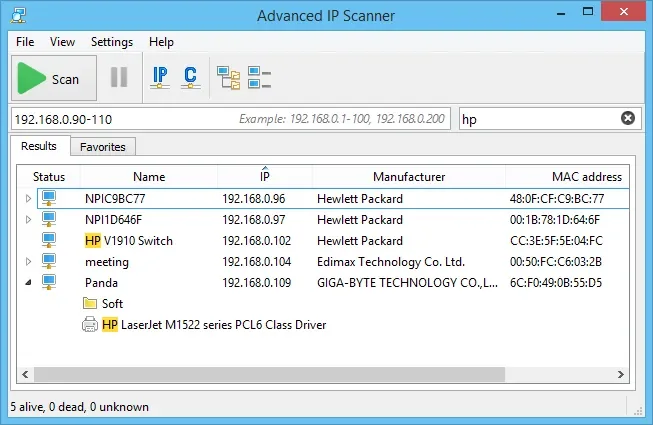
192.168.0.90-110 and a search for “hp”, then the Results tab with five devices, one of them expanded to show a shared folder and a printer. The status bar reads “5 alive, 0 dead, 0 unknown”.The window is small and quick to learn. Across the top are the File, View, Settings and Help menus, then a toolbar with the green Scan button, Pause, and the IP and C buttons that fill in a range based on this computer’s own subnet. Below that sits the range field with its hint “Example: 192.168.0.1-100, 192.168.0.200”.
For a first test, click C (or type 192.168.20.1-254 if your office LAN is 192.168.20.0/24) and press Scan. Your router, file server, NAS and printer should appear within moments. The usage guide explains every column and right-click action.
Keeping a portable copy in C:\Tools
Because the file can run without installing, many admins keep it in a tools folder alongside PuTTY and similar utilities. Copy the verified file to C:\Tools or onto the USB drive you carry between the sites you look after, and start it from there. Each start goes through the short language and Install/Run choice again; pick Run. Keep the original file name so the version stays visible.
Updating and removing it
Updating
Check the official site every few months. If a newer 2.5 build is offered, download it, verify the signature as above, and run it with the Install option; installing a newer build over an older one is the usual Windows approach. For a portable copy, simply replace the old file.
Uninstalling
Open Settings > Apps > Installed apps.
On Windows 10 the page is called Apps & features.
Find Advanced IP Scanner and choose Uninstall.
Confirm the UAC prompt and follow the short wizard.
Tidy up portable copies.
If you also used the Run option, delete the file from Downloads or
C:\Tools.
Troubleshooting
The download page opens but no file appears.
Likely cause: The browser blocked the automatic download or asked where to save it.
Fix: Click “If downloading fails to start, click here” on the same page and check the browser’s download list.
The browser or SmartScreen shows a caution message about the file.
Likely cause: Windows is cautious with executables it has seen less often.
Fix: Confirm the file came from advanced-ip-scanner.com and that its signature names Famatech Corp. If either check fails, delete it and download again.
UAC shows an unknown publisher.
Likely cause: The file is incomplete or is not the genuine installer.
Fix: Delete it, download a fresh copy from the official site and repeat the signature check.
You cannot get past the UAC prompt.
Likely cause: Your account does not have administrator rights on this PC.
Fix: Ask the person who administers the computer; do not look for workarounds.
A scan shows only your own PC.
Likely cause: The range does not match your network, for example because a VPN or guest Wi-Fi is active.
Fix: Run ipconfig, check your IPv4 address, then use the C button or type the matching range.
Some devices appear without a name.
Likely cause: Printers, cameras and other small devices often do not publish a name.
Fix: That is normal. Identify them by the Manufacturer and MAC address columns.
Done? Continue with the guide to using Advanced IP Scanner, or compare it with the other picks on the home page. Our safe downloads checklist applies to every program on this site.
Download Advanced IP Scanner from the official siteOpens the official Advanced IP Scanner download page. We host no files.