

Network Scanner by LizardSystems is a compact Windows tool with one clear job: it goes through the addresses you give it and reports the shared folders, FTP servers and web servers it finds, along with whether your account can read or write each share. This page covers getting the genuine installer, choosing a licence, checking the file against the hash the vendor publishes, and picking an install mode.
Download Network Scanner from the official siteOpens the official Network Scanner download page. We host no files.
Use it on networks and devices you own or administer.
What you are downloading
Version 21.07 was released on July 7, 2021, so this is a mature program rather than a new one. Glance at the releases page before downloading in case a newer build has appeared since our check.
- Product
- Network Scanner by LizardSystems
- Version checked
- 21.07, released July 7, 2021
- Installer
netscanner_setup.exe, about 3.0 MB- Build
- Windows 32-bit, Authenticode-signed
- Portable edition
- None — it installs like any desktop program
| Requirement | Vendor’s stated minimum |
|---|---|
| Windows desktop | Windows 7, 8, 8.1 and 10 |
| Windows Server | 2008 R2, 2012, 2012 R2 and 2016 |
| Processor | 1 GHz |
| Memory | 512 MB RAM |
| Disk space | 50 MB |
Personal or business licence
There is one download for everyone. The vendor describes it as “Fully functional — every feature is unlocked”, and there is “No registration — the download starts right away”. The licence is something you add afterwards, and it depends on how you use the program.
| Personal licence | Business licence | |
|---|---|---|
| Meant for | Non-commercial use: a home network, a study lab | Commercial use: an office network you look after |
| How you get it | “Get a free license” — register and receive a key | Buy it on the purchase page |
| Price | Free | US$79.95 per machine (purchase page, September 2026) |
| Terms | The key removes the startup reminder | Perpetual, with one year of updates |
Scanning an office network as part of your job is commercial use, so plan on the business licence. When in doubt, read the terms on the purchase page.
Licences are counted per machine. Because the business licence is perpetual, what ends after the first year is access to updates, not the right to use the program.
Get the installer from lizardsystems.com
Open the official download page
Go to lizardsystems.com/network-scanner/download/ directly, or use the button on this page.
Check the version
The page should show 21.07 or newer, with the note “Clean installer — no adware or bundled software”.
Save the file
The download starts immediately. Save it to Downloads, or to
C:\Tools\Installersif you keep a local library of admin utilities.Check what arrived
You should have one file,
netscanner_setup.exe, of about 3.0 MB. A different name, a ZIP archive or a much larger file is a sign it did not come from the vendor.
Unofficial download sites may bundle extra software, and they often lag behind the current version. Our safe downloads page explains the general approach.
Verify the file
LizardSystems publishes the SHA-256 hash of its installer, which turns checking the file into a two-minute job. For version 21.07 the published value is:
5421a6ddb26a2a9e56f7959e927d0f2158c0cfb44c55d4d2fee1c427ce63f8d6
Open PowerShell (no administrator rights needed). The first command shows the hash of your copy; the second pair compares it for you and prints True when the values match. The -eq operator ignores letter case, so the capitals PowerShell prints do not matter.
Get-FileHash "$env:USERPROFILE\Downloads\netscanner_setup.exe" -Algorithm SHA256

$h = (Get-FileHash "$env:USERPROFILE\Downloads\netscanner_setup.exe" -Algorithm SHA256).Hash
$h -eq "5421a6ddb26a2a9e56f7959e927d0f2158c0cfb44c55d4d2fee1c427ce63f8d6"
The installer is also Authenticode-signed, which gives you a second, independent test:
Get-AuthenticodeSignature "$env:USERPROFILE\Downloads\netscanner_setup.exe" | Format-List Status, SignerCertificateWithout PowerShell: right-click the file, choose Properties, open the Digital Signatures tab, select the entry and click Details. Windows should report that the signature is OK.
- The hash matches the value the vendor publishes for the version you downloaded
- The signature status is Valid and the signer is the developer, not an unfamiliar name
- The file name and size match the download page
Install for all users or just for you
The one real decision in setup is who the program is for. The installer asks whether to install for all users, which needs administrator rights, or only for the current user, which the vendor calls non-admin mode.
| Mode | Admin rights | Who can start it | Good fit when |
|---|---|---|---|
| All users | Yes, expect a UAC prompt | Everyone who signs in to the PC | It is a shared admin workstation |
| Current user (non-admin mode) | No | Only your Windows account | You use a managed laptop without local admin rights |
Run the installer
Double-click
netscanner_setup.exe. If Windows shows a User Account Control prompt, check that it names a verified publisher.Choose the install mode
Pick all users or current user as above. The remaining pages are routine, and the defaults suit most people; the exact wording may differ slightly between versions.
Finish and launch
Start the program from the last page or later from the Start menu.
First launch
Until you enter a licence key, a startup reminder appears when the program opens. Close it and the main window appears, with every feature available.
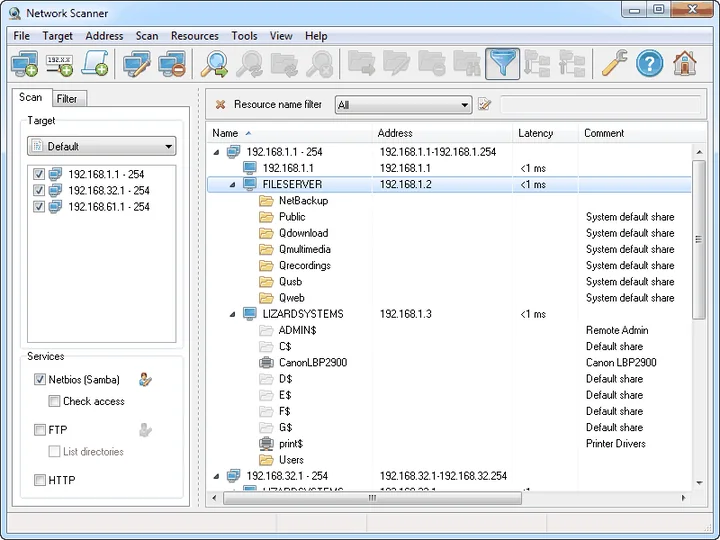
The left pane has the Scan and Filter tabs. On Scan you see the target, “Default”, with a checklist of ranges, and the Services box with Netbios (Samba), FTP and HTTP. Results fill the tree on the right. For a first test, add one range for your own subnet, such as 192.168.20.1 to 192.168.20.254, and start a scan; the usage guide covers the rest.
For a free personal key, use “Get a free license” on the vendor’s site; entering the key stops the reminder.
Updating and uninstalling
- Every few months, check the releases page for a build newer than yours.
- Download new builds from the same official page and verify them again.
- Keep saved results and exports outside the program folder, for example in
C:\Tools\Scans.
To remove the program, open Settings > Apps > Installed apps (Windows 11) or Settings > Apps > Apps & features (Windows 10), find Network Scanner and choose Uninstall. A current-user install is removed from that user’s account. Result files you saved elsewhere are your own documents and stay put.
Troubleshooting
The SHA-256 does not match
Likely cause: An interrupted download, or a different build from the one the hash belongs to.
Fix: Delete the file, download it again from the official page and compare with the hash for that exact version.
A SmartScreen message appears when you run setup
Likely cause: Smaller utilities are downloaded less often, so Windows has less reputation data for them.
Fix: Check the hash and signature first. If both pass and your organisation allows the program, continue; if either fails, do not run the file.
Setup asks for an administrator password you do not have
Likely cause: You chose the all-users install.
Fix: Run setup again and choose current-user mode, or ask your IT team to install it.
The startup reminder appears every time
Likely cause: No licence key has been entered.
Fix: Register for the free personal licence for non-commercial use, or buy a business licence.
The scan finishes but lists no shared folders
Likely cause: File sharing is off on the targets, a firewall blocks the service, or the range is wrong.
Fix: Check the range, then see the service and filter settings in the guide.
Get the file from the developer, compare it with the published hash, and installation takes only a few minutes.
Download Network Scanner from the official siteOpens the official Network Scanner download page. We host no files.