

Angry IP Scanner looks simple — a range, a Start button, a table — but it is built around two ideas that make it flexible once you know them. This guide explains those ideas first, then walks through a real scan of the example office LAN 192.168.20.0/24. Use it on networks and devices you own or administer. If it is not installed yet, see the download page.
Feeders and fetchers in one minute
| Feeder | Fetchers | |
|---|---|---|
| Question it answers | Which addresses should be scanned? | What should be found out about each one? |
| Where you pick it | The dropdown on the toolbar | Tools > Fetchers |
| Examples | IP Range, Random, IP List File | Ping, Hostname, Ports, Web detect, MAC address, NetBIOS info |
| What you see | The input fields on the toolbar change | Each fetcher becomes a column in the results |
One feeder produces the list of addresses; every chosen fetcher adds one column of information about each address. Change either one and you get a different scan.
So a quick “who is on the LAN?” check is the IP Range feeder with just Ping and Hostname, while a “which devices run a web interface?” check uses the same feeder with Ports and Web detect added.
Menus and toolbar
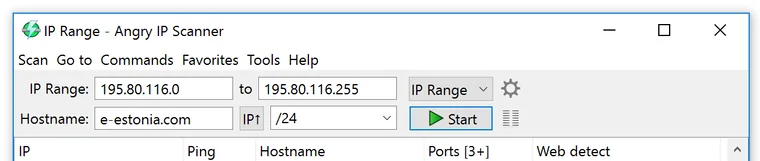
| Menu | What you will use it for |
|---|---|
| Scan | Starting scans and exporting results (Scan > Export) |
| Go to | Moving around the result list |
| Commands | Opening the selected host in a browser or another tool |
| Favorites | Saving and recalling ranges you scan often |
| Tools | Preferences and the Fetchers list |
| Help | Help and program information |
Feeders: deciding what to scan
The dropdown to the right of the range fields picks the feeder. The fields next to it change to match.
IP Range
The everyday choice. Enter a start and an end address, for example 192.168.20.1 to 192.168.20.254. The Hostname row below offers a shortcut: enter a host name, click IP↑ to look up its address, and choose a netmask such as /24 to turn that address into a whole subnet. Entering FS01 with /24 covers the entire office LAN in two clicks.
IP List File
Reads addresses from a text file. This is the tidy option when your devices are not in one block: keep a file such as C:\Tools\servers.txt listing 192.168.20.10, 192.168.20.30 and 192.168.20.40, and scan only those every morning.
Random
Generates addresses at random within the limits you set. On a small LAN you will rarely need it; IP Range or a list file gives more predictable results.
Fetchers: deciding what to collect
Open Tools > Fetchers to choose which fetchers are active. Ping, Hostname and Ports are the usual starting set; the others are optional extras you switch on when you need them. Each active fetcher appears as a column in the results table.
| Fetcher | Adds a column showing | Worth enabling when |
|---|---|---|
| Ping | Whether and how fast the host replied | Always — it is the basic alive check |
| Hostname | The name the address resolves to | Always, on a network with working DNS |
| Ports | Which of the configured ports are open | You want to know which hosts offer SSH, web or other services |
| Web detect | The web server’s identification | You are looking for web interfaces on printers, NAS boxes or routers |
| MAC address | The hardware address | You maintain DHCP reservations or an asset list |
| NetBIOS info | Windows network names and related details | The LAN has Windows PCs and file shares |
Walk-through: scan the office LAN
Choose the IP Range feeder.
Enter
192.168.20.1and192.168.20.254, or use the Hostname row with/24.Pick the fetchers.
In Tools > Fetchers, keep Ping, Hostname and Ports, and add MAC address.
Set the ports.
In Tools > Preferences, enter the ports you care about, for example
22,80,443, so SSH onweb01and the web interfaces of the NAS and printer show up.Click Start.
The status bar shows progress and the number of active threads; when it returns to “Ready”, the scan is complete.
Making sense of the results
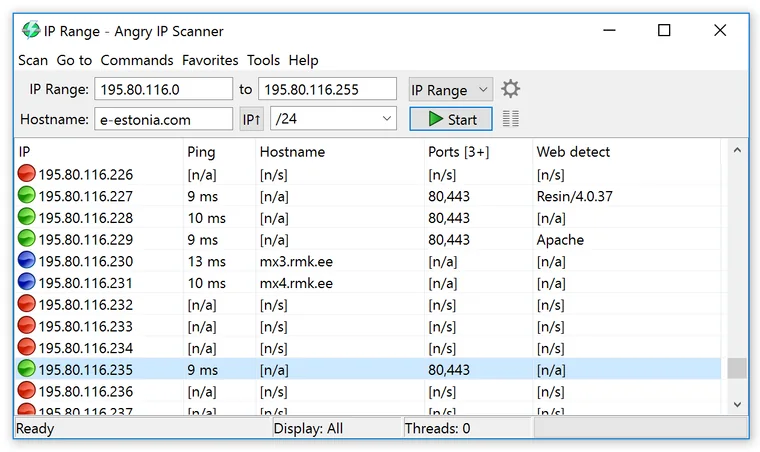
Each row is one address and each column is one fetcher. The coloured dot at the start of a row summarises the host’s state at a glance. Two placeholder values are worth knowing:
[n/s]— not scanned: that fetcher did not collect a value for this host.[n/a]— no value available, for example a host without a resolvable name.
The status bar also shows Display: All. The display options in Preferences let you show only the hosts you are interested in, which keeps a full /24 scan readable.
Opening a host in another tool
Select a row and open the Commands menu (or right-click). The openers there hand the address to another program, for example a web browser for a NAS admin page. It saves copying addresses by hand. For SSH on web01, pair it with PuTTY.
Preferences worth a look
Tools > Preferences (or the gear on the toolbar) holds the settings that shape each scan:
| Setting | Why you might change it |
|---|---|
| Ports to scan | Match the services you actually run on your network |
| Pinging method | Some devices answer one method better than another |
| Number of threads | Lower it on a slow link or busy network; the default suits most LANs |
| Display options | Hide hosts you do not need to see |
Favorites for ranges you reuse
Once a feeder is set up the way you like, save it from the Favorites menu with a clear name such as “Office LAN” or “Servers only”. Next time, pick it from the same menu and click Start.
Exporting results
Use Scan > Export to save the current table. The formats serve different needs:
| Format | Good for |
|---|---|
| CSV | Opening in a spreadsheet and keeping a dated inventory |
| TXT | Pasting into a ticket or an email |
| XML | Feeding another script or tool |
| IP:Port list | A plain list of addresses with their open ports |
Strengths and limits
What we like
- Open source and cross-platform, so the same tool works on Windows, macOS and Linux
- Feeders and fetchers make it easy to tailor a scan
- Four export formats
Keep in mind
- No built-in share browser or remote desktop launcher like Advanced IP Scanner
- Checking share permissions is a job for LizardSystems Network Scanner
- It shows which hosts and ports answer, not the traffic itself — that is Wireshark’s job
FAQ
What is the difference between a feeder and a fetcher?
The feeder decides which addresses are scanned; fetchers decide which columns of information are collected for each one.
Why do some cells say [n/s]?
It means “not scanned”: that fetcher did not collect a value for the host.
Can I scan only a handful of servers?
Yes. Put their addresses in a text file and choose the IP List File feeder.
How do I get the results into Excel?
Use Scan > Export and choose CSV.
Download Angry IP Scanner from the official siteOpens the official Angry IP Scanner download page. We host no files.