

Angry IP Scanner is an open-source network scanner written by Anton Keks and a group of contributors and released under the GPLv2 licence. It runs on Windows, macOS and Linux, and the version current in September 2026 is 3.10.0. On Windows the only real decision is which of two packages to download, and that depends on whether you already manage Java on your PCs.
Download Angry IP Scanner from the official siteOpens the official Angry IP Scanner download page. We host no files.
Which Windows package to pick
The official download page lists these options for Windows:
| Package | What the page says | Our advice |
|---|---|---|
| Windows installer | “includes Java runtime (recommended)” | The right choice for almost everyone. Nothing else to install. |
| Stand-alone executable | “requires a separate installation of 64-bit OpenJDK/Java 21+” | Only if a 64-bit Java 21 or newer is already on the PC and you keep it updated. |
| Legacy 2.21 | For very old Windows (98/ME/2000/XP) | Do not use it on modern Windows. |
Not sure? Take the Windows installer. It carries its own Java runtime, so there is no separate Java to install, track or update.
Getting it from the project itself
Angry IP Scanner has two official homes, and both are run by the project:
- angryip.org — the project site, with the download page, documentation and FAQ.
- github.com/angryip/ipscan — the source code and the release files, if you prefer to take them from GitHub.
Anything else — download portals, file mirrors, repackaged bundles — is outside the project’s control, and unofficial download sites may bundle extra software. Because the source is public, you can also read exactly what each release changed before you upgrade.
Open angryip.org/download.
Type the address yourself and make sure you are looking at the Windows section.
Pick the Windows installer.
Save it to your Downloads folder.
Check the version.
The page should show 3.10.0. If you see 2.21, you are in the legacy section.
Installing the recommended package
The installer is an ordinary Windows setup program. Its screens are short and the defaults suit most people; the exact wording may differ slightly between versions.
Run the file from Downloads.
Windows shows a User Account Control prompt. Read the publisher line before you click Yes; see Verify the file for what to expect.
Follow the setup screens.
Accept the licence when it is shown and keep the suggested folder unless you have a reason to change it.
Finish.
Start Angry IP Scanner from the Start menu. The Java runtime it needs came with the package, so there is nothing else to set up.
The stand-alone executable and Java
The stand-alone file suits PCs where a current Java is already part of the standard build, or a tools folder you carry around. It needs a 64-bit OpenJDK/Java 21 or newer. Check what is installed first:
java -versionIf the command is not found, or it reports a version below 21 or a 32-bit build, either install a suitable Java from a vendor you already trust or switch to the Windows installer, which avoids the question entirely. Once Java is in place, keep the executable somewhere sensible such as C:\Tools and start it from there.
Verify the file
Take a minute to look at what you downloaded before running it. Start in File Explorer: right-click the file, choose Properties, and look for a Digital Signatures tab. If it is there, select the entry, click Details and confirm the signature is reported as OK and that the signer name makes sense for the project. If there is no such tab, the file is not Authenticode-signed; in that case your assurance comes from having taken it from angryip.org or the project’s GitHub releases.
PowerShell gives the same answer in one line, and it can also print a SHA-256 hash you can keep with your records:
cd $env:USERPROFILE\Downloads
Get-AuthenticodeSignature .\<downloaded-file>.exe | Format-List Status, SignerCertificate
Get-FileHash .\<downloaded-file>.exe -Algorithm SHA256| Status shown | What it means |
|---|---|
Valid | Signed, and unchanged since signing. Check the signer name. |
NotSigned | No Authenticode signature. Rely on the download source. |
HashMismatch | The file changed after signing. Delete it and download again. |
If you deploy the same file to several PCs, a matching hash on each one confirms they all got the identical copy.
If Windows shows a warning
Network scanners sometimes trigger warnings from Windows or security software, simply because of what they do. The download page points to the project FAQ, which explains why. Read that entry, confirm your file came from angryip.org or GitHub, and check it as described above. Do not turn off any protection to get the program running; if your organisation’s security software blocks it, ask whoever manages that software to review and allow it.
First launch
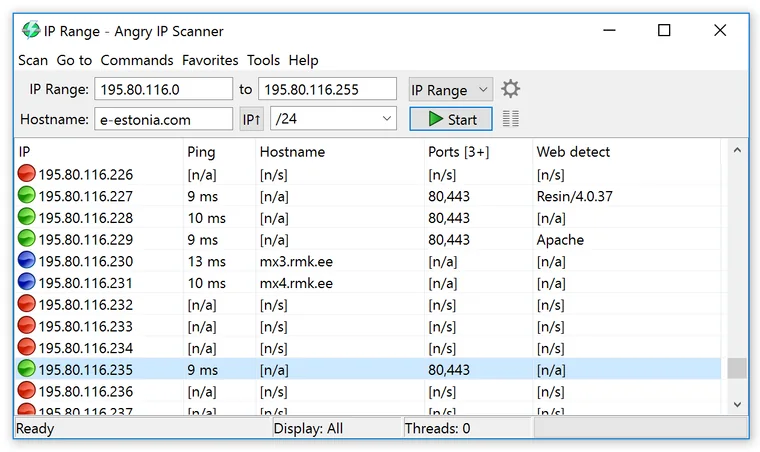
The main window opens straight away, with no account and nothing to register. The toolbar holds the start and end of the range, a dropdown set to IP Range, a gear for preferences, a Hostname field with an IP↑ button and a netmask dropdown such as /24, and the Start button. For your first scan, enter 192.168.20.1 to 192.168.20.254 (or your own LAN) and click Start.
Use it on networks and devices you own or administer. The usage guide explains feeders, fetchers and exports in detail.
Updates and removal
- Check for new releases
- angryip.org/download or the GitHub releases page
- Update the installer package
- Download the newer installer and run it
- Update the stand-alone file
- Replace the executable; keep Java 21+ current separately
- Uninstall
- Settings > Apps > Installed apps > Angry IP Scanner > Uninstall
- Remove the stand-alone file
- Delete the executable from
C:\Tools
Before upgrading, glance at the release notes on GitHub; they list what changed, which is a benefit of an open project.
Troubleshooting
The stand-alone executable does nothing or reports that Java is missing.
Likely cause: No 64-bit Java 21 or newer is installed, or an older one is found first.
Fix: Run java -version. Install a suitable Java, or use the Windows installer, which brings its own runtime.
The download page offers version 2.21.
Likely cause: You are looking at the legacy section for very old Windows.
Fix: Scroll back to the current 3.10.0 packages. Do not use 2.21 on modern Windows.
Windows or security software shows a warning.
Likely cause: Network scanners sometimes trigger warnings.
Fix: Read the project FAQ entry linked from the download page, check the source and the file, and ask your security administrator if your organisation’s software blocks it.
UAC asks for administrator rights you do not have.
Likely cause: Installing software on this PC needs administrator approval.
Fix: Ask the person who administers the PC, or ask them to deploy the installer for you.
Every host shows as dead.
Likely cause: The range does not match your network, or you are connected through a VPN or guest Wi-Fi.
Fix: Run ipconfig, compare your address with the range, and try again.
Next: how to use Angry IP Scanner. For a Windows-only alternative with share browsing and RDP built in, see Advanced IP Scanner; our safe downloads checklist covers the general rules.
Download Angry IP Scanner from the official siteOpens the official Angry IP Scanner download page. We host no files.